The Struggle Against Malware
Prologue
I’ve been using computers for 23 years, since getting my first PC after the college entrance exam in 2000. About the first third was on Windows (my last was Windows 7), and the remaining two-thirds on macOS. macOS has basically no malware. So I hadn’t used Windows in over a decade, and was rusty. (Ironically, I was once a Microsoft MVP, spent my internship printing MSDN pages to memorize Windows APIs, and taught “Windows Programming” at Tongji for years. I feel I’ve let Microsoft down.)
Qian’s laptop is a Microsoft Surface. I always gave him a standard user account with parental controls, so 3-5 years passed without malware. This year I bought my father a Windows laptop but forgot to tell him to use a standard account, not admin. He’d been using admin, and apparently a kid borrowed it once. Next thing you know, it was infested with malware. Popups everywhere, auto-installing crap, “helpful” scanning tools. Can’t uninstall. I tried remote guidance once, but it came back. Most people can’t deal with this.
Recently, with the pandemic easing, my parents visited New Zealand and brought the laptop. He wanted me to reinstall Windows. But I figured I’d try cleaning it without a reinstall. Also wanted to see what modern malware looks like. It had been years since I used Windows.
Uninstall Tricks
The obvious approach: use Windows Control Panel (or Settings) to uninstall. But while you play by the rules, malware doesn’t. I discovered many tricks.
The basic one: hide the uninstall button so well you can barely find it. Some even bury it among install buttons — click wrong and you install more malware. This is standard. There’s an article about a Japanese user’s ordeal trying to uninstall 360 Browser, described as “defusing a bomb”:
More shameless: begging and pleading. Like this:

Look how cute it is — can you bear to uninstall it?
Even worse: no uninstall function at all. Click uninstall in Control Panel, and it straight-up tells you it can’t be removed. Or the main program is removed but a service remains, silently reinstalling itself.
This is ultimately Windows’ fault — giving developers too much power to customize install/uninstall experiences. Conscientious developers can do great things for users. But this power is abused to trap users. On macOS, installation is dragging an app to a folder, uninstallation is dragging it to the Trash. Apps can’t write outside their folder. Developers have no room to trick you.
Auto-start
This is standard malware behavior — start automatically at boot. Modern Windows makes it easy to disable auto-start programs (in Task Manager or Settings). But malware finds new ways: registering as a Windows service, so it auto-starts without appearing in the auto-start list. More on that next.
Windows Services
Services were designed for background programs that don’t need user interaction, like network time sync. Malware uses them to persist in the background. Some even name their services to look like built-in Windows services, or use intimidating names like “kernel,” “driver,” “system.” Without checking digital signatures, you’re easily fooled.
Another problem: unlike regular programs, services have no standard uninstall method. Regular users don’t know how to delete them (registry edits or sc.exe). This makes services a favorite malware trick.
Some malware services don’t even implement standard stop methods — you can’t stop them from the Services console. The first time I cleaned everything, some malware came back because I missed a service.
For how to delete services, see Microsoft’s docs: sc.exe delete
Task Scheduler
Task Scheduler is meant for running programs on a schedule — like cron on Unix/Linux. Very useful. But malware registers itself as scheduled tasks to pop ads or reinstall itself. Most people don’t think to check there, but once you know, it’s easy to clean up: just delete the task.
Browser Bookmarks and Homepage
This is an old problem dating back to the IE era. Your homepage gets changed without you noticing. IE is dead now, replaced by Chrome-based Edge, but the problem persists. Malware adds its own sites to your bookmarks or changes your homepage.
The simplest trick: add fake links to your bookmarks — “Baidu official site” that actually go to some shady site that installs more malware. Just delete them.
More subtle: change the browser homepage. Open the browser and you see a malware site. Easy to fix — just change it back in settings. Then come the hidden tricks.
Simple version: create a desktop shortcut that looks like Edge, but clicking it runs msedge.exe http://malware-site.com. You need to create a clean Edge shortcut.
More subtle: install browser extensions (Edge supports Chrome extensions) that hijack your homepage. This is harder — you need to remove all extensions and reset the homepage. Some people don’t even know how to remove extensions.
Even more subtle: a background process that modifies the browser’s homepage in memory. (Kingsoft — yes, Lei Jun’s former company — does this. I prefer to believe it’s a counterfeit version.) Edge’s settings look normal, but every launch opens a malware site. You need to kill the process, find how it starts, and delete it root and branch.
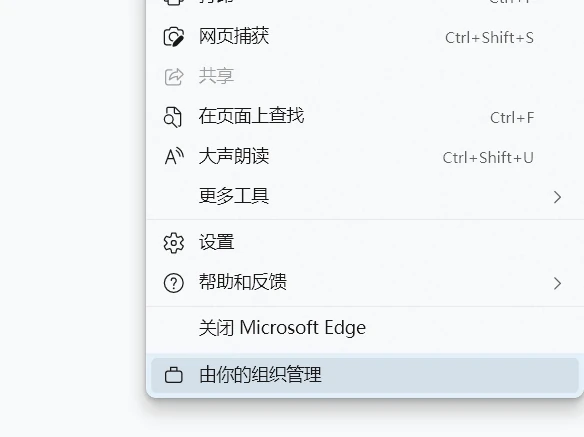
Most insidious: use Group Policy to install malware. If Edge shows “Managed by your organization” but it’s a personal computer not joined to a company domain, you’ve been hit. Group Policy adds malware extensions to the allowed list. Fix: find and delete the registry keys.
Afterword
In the early days of computing, nobody imagined it would become so widespread. Early computers were networked across a few universities, governed by gentlemen’s agreements: don’t be evil. Security was like New Zealand’s door locks — 90% designed to keep out honest people, not real criminals.
Times have changed. Many old security mechanisms and privacy protections are fragile. Windows, for historical reasons, prioritizes compatibility and backward compatibility — which gives malware an opening.
When I taught at Tongji, I always thought computer science students needed a course called “Computer Ethics.” Teach them not to hack, write viruses, make malware, or be evil. But nobody would teach or take such a course. When you’re hungry and your boss tells you what to do, you do it. If you don’t, someone else will, and you’ll be out of a job. Gresham’s Law in action. The struggle against malware will continue for a long time.